Use Workbook Agents in the API
Create an agent in a workbook, enable it for API use, and manage versions
Overview
This guide walks through creating a workbook agent called Attraction Rating (rates attractions on a 1-10 scale), enabling it for API use, and managing versions.
1) Create the agent in a workbook
Open the agent pane and create a new agent.
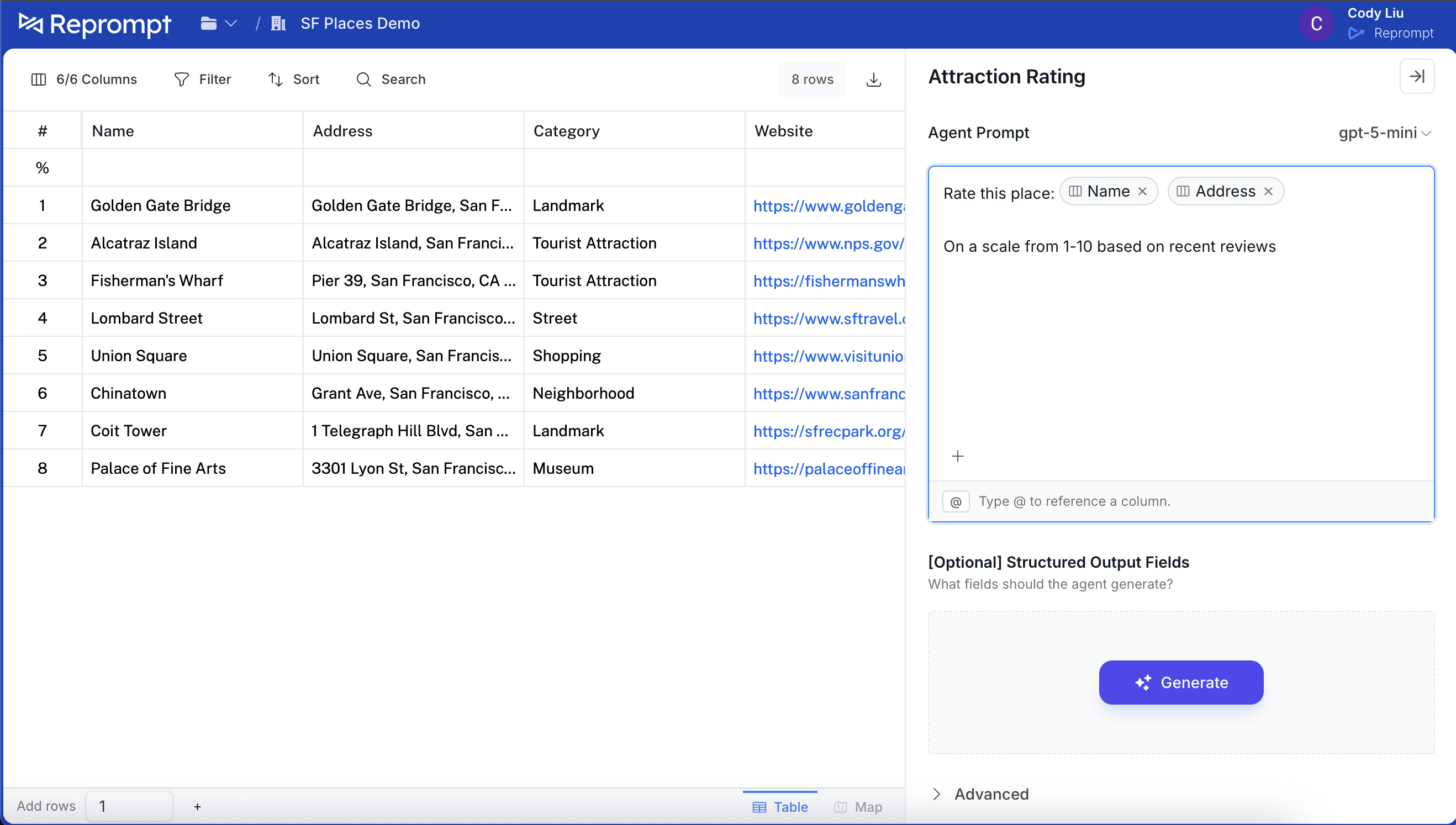
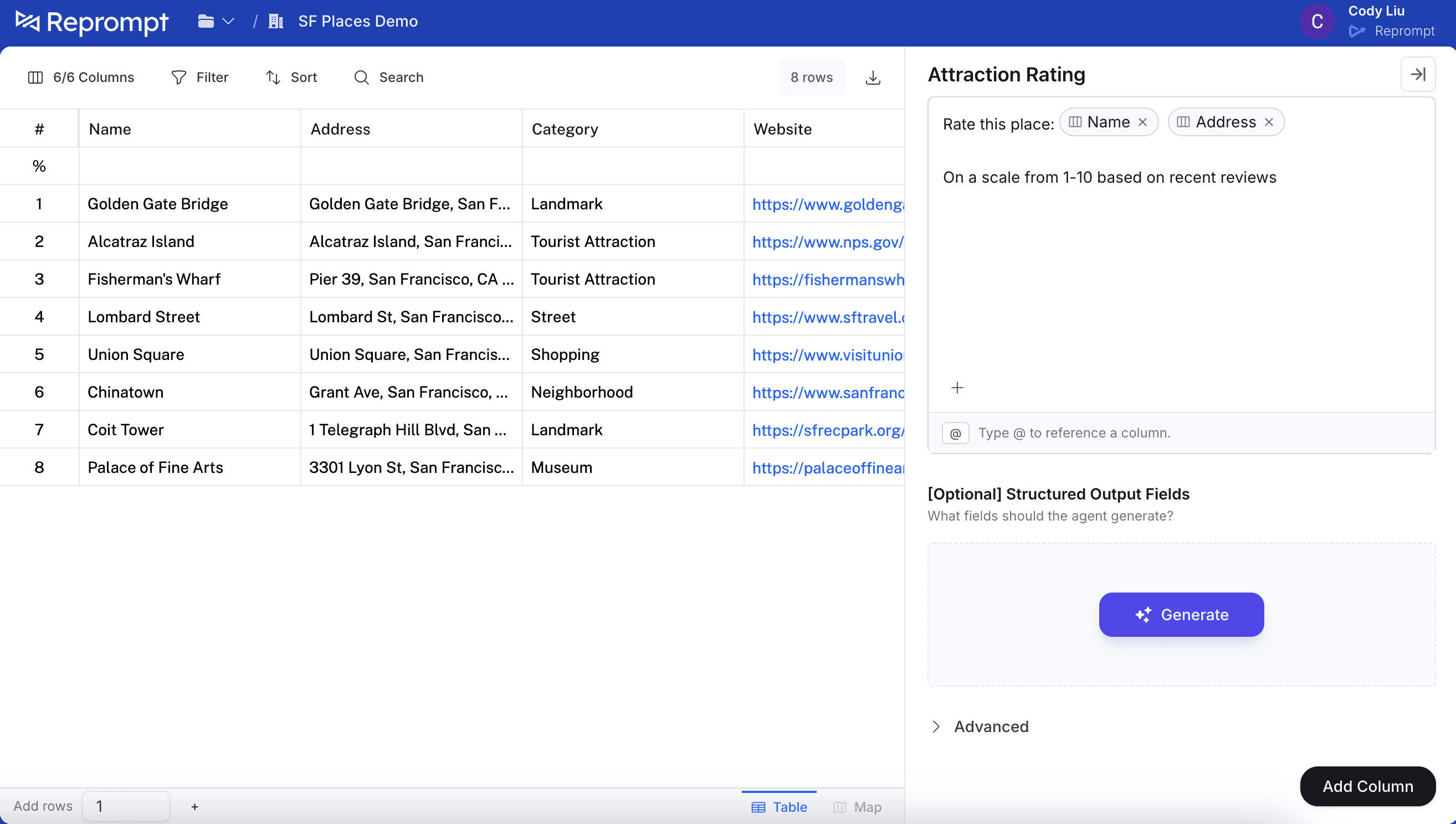
Add the prompt, then scroll down and click Add column.
2) Edit the agent settings
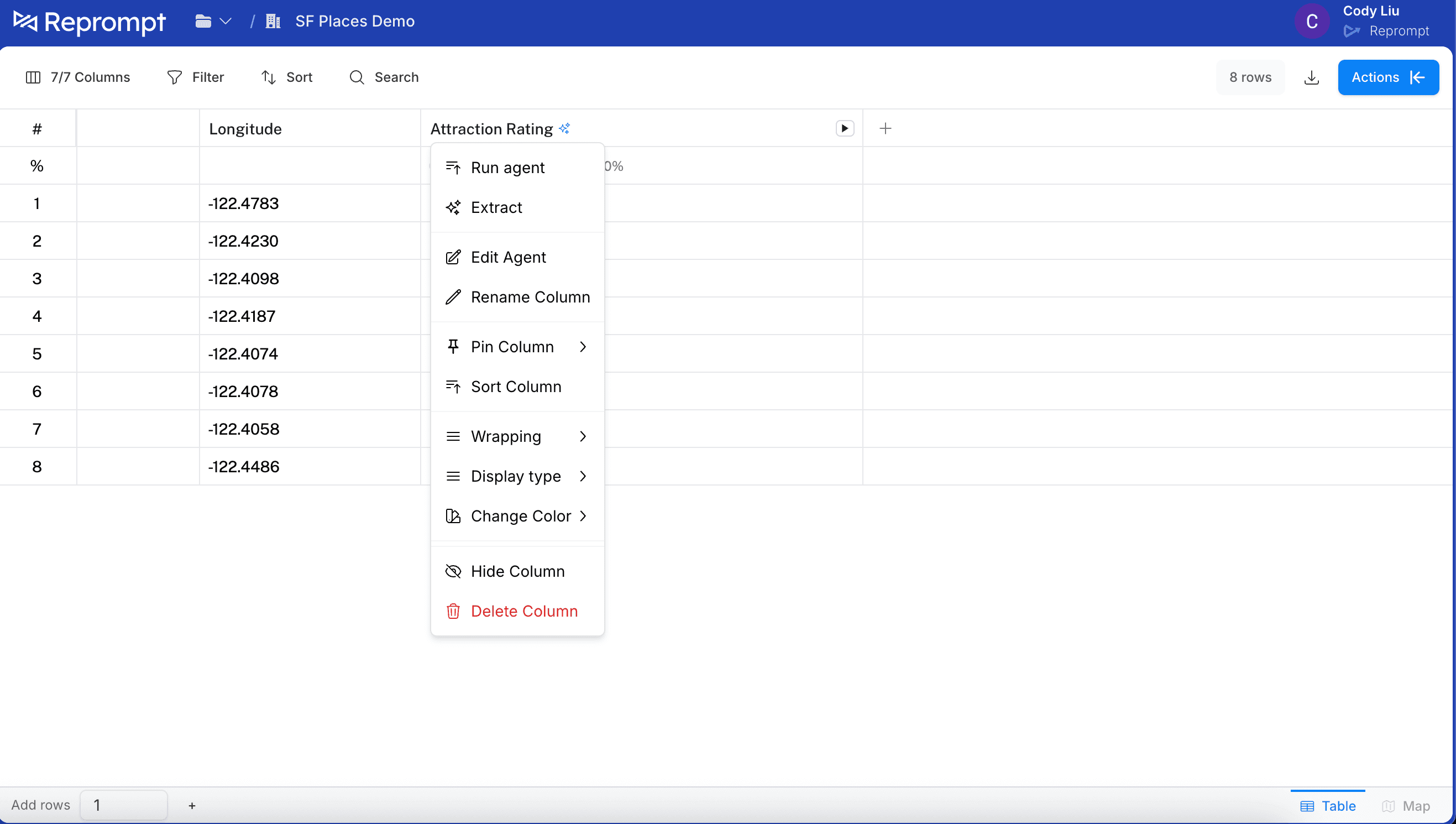
After the column is added to the table, click the column header and select Edit agent.
3) Enable API usage
In the agent editor, click Advanced and then click Use in API.
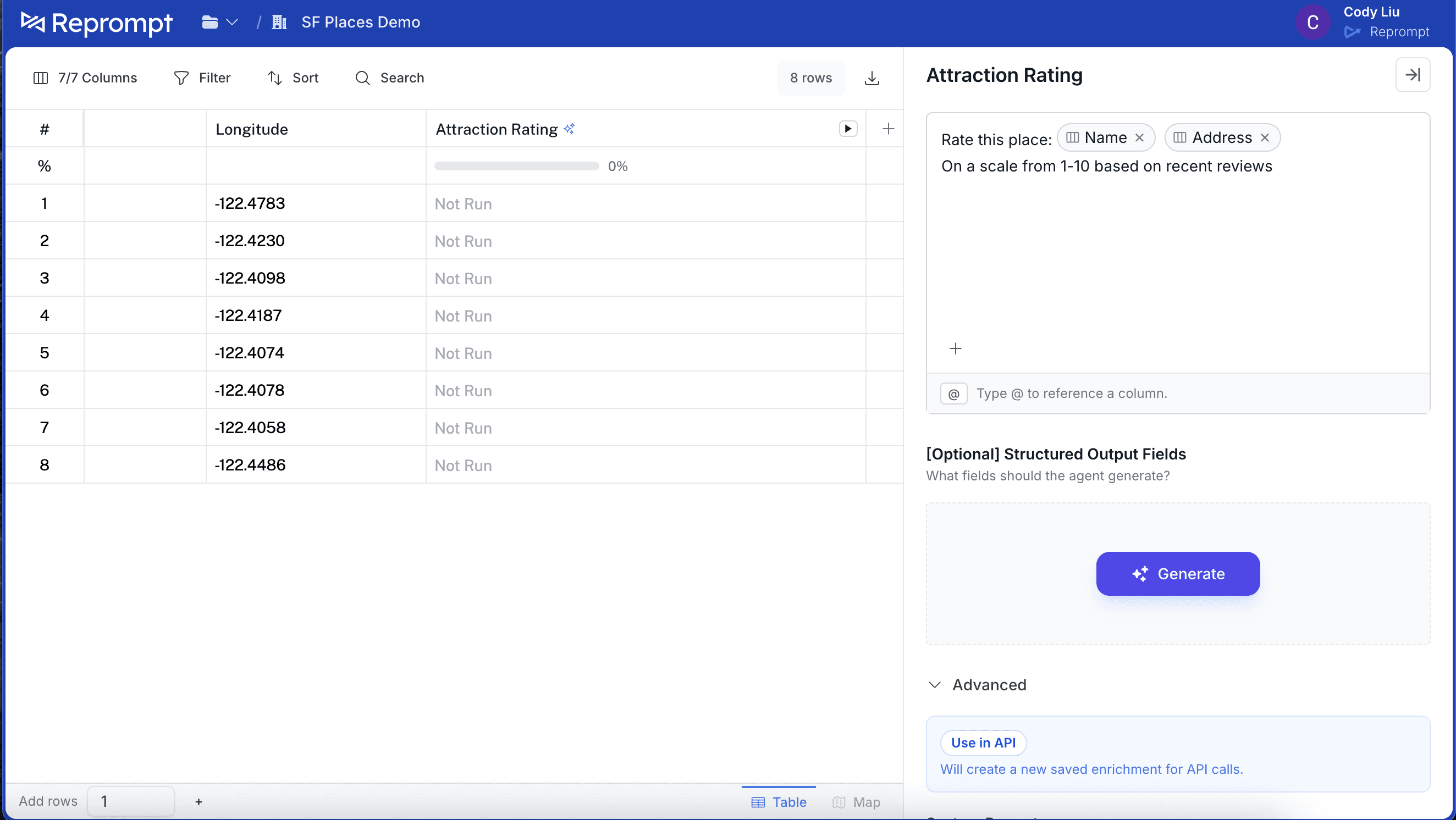
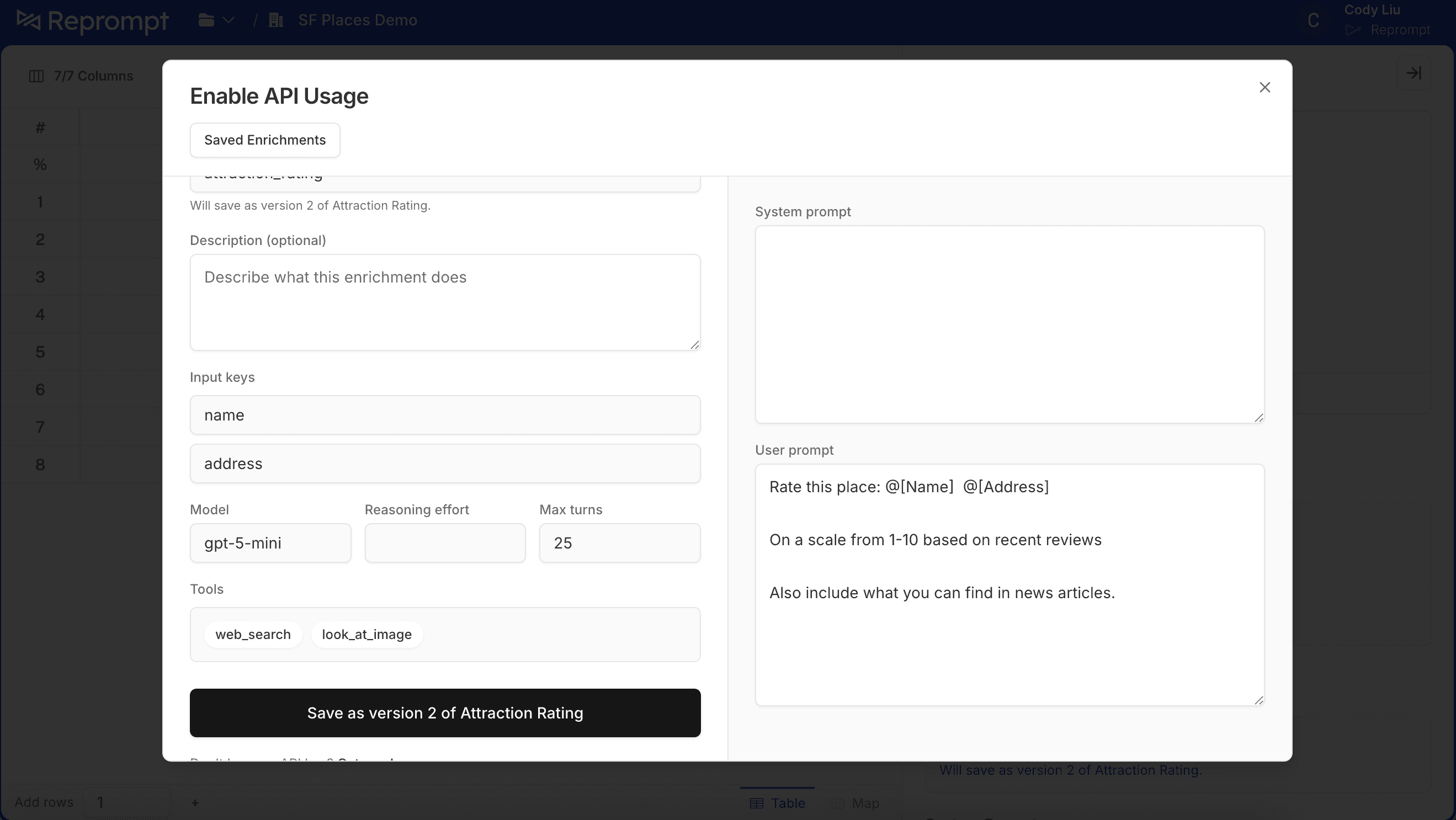
This opens the API enablement panel. You can add a description and optionally rename the API attribute.
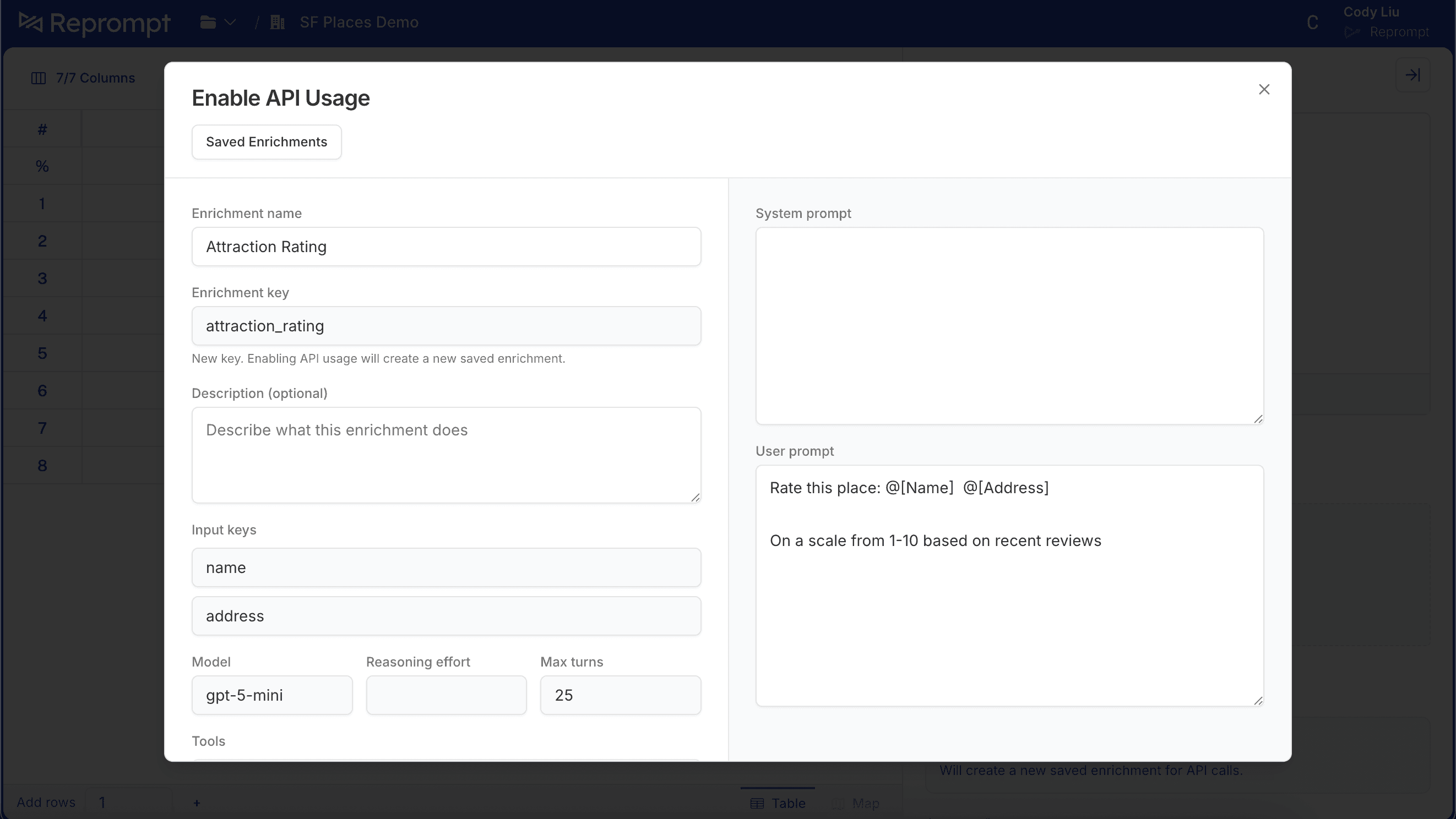
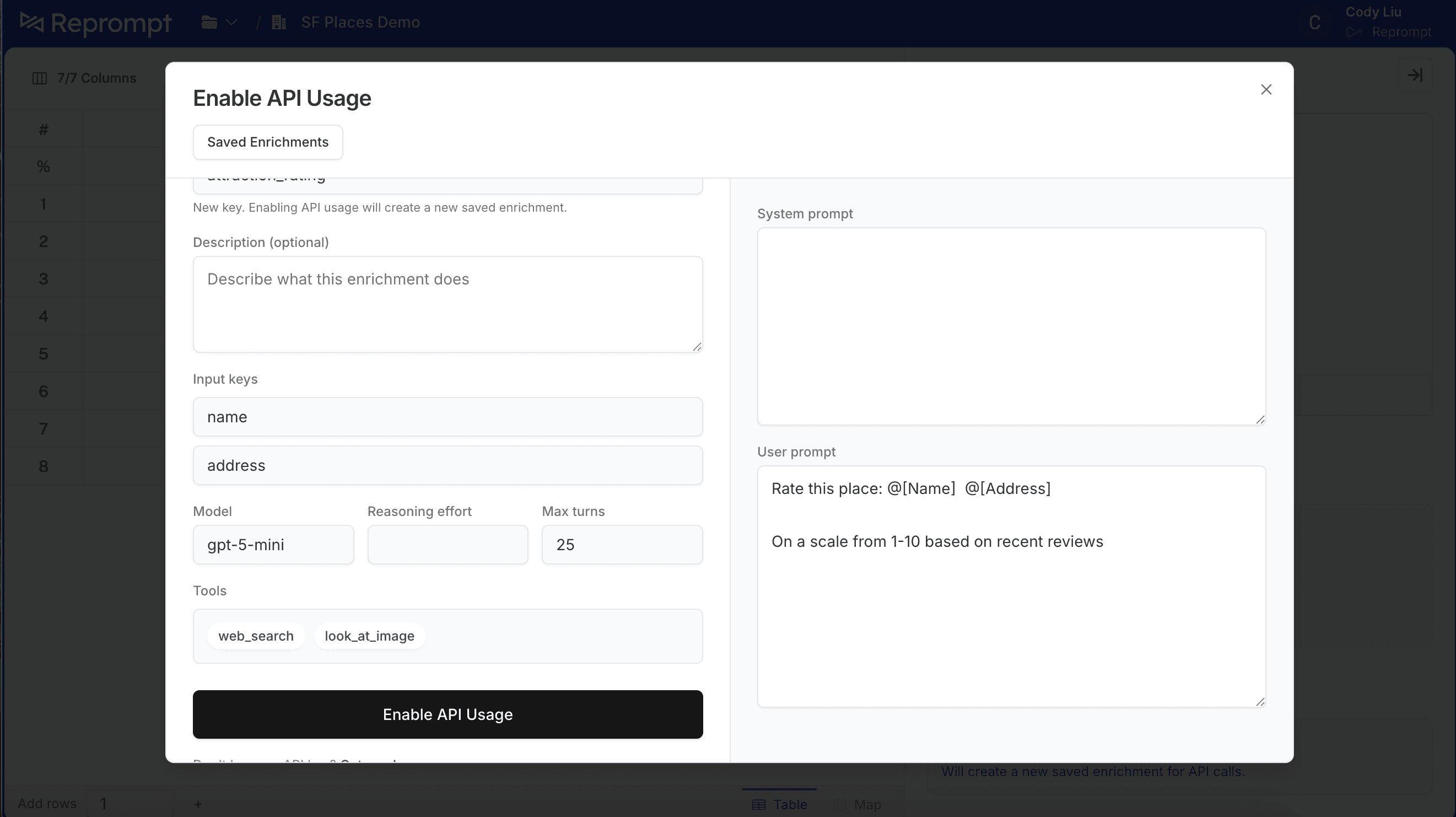
Scroll down and click Enable API usage.
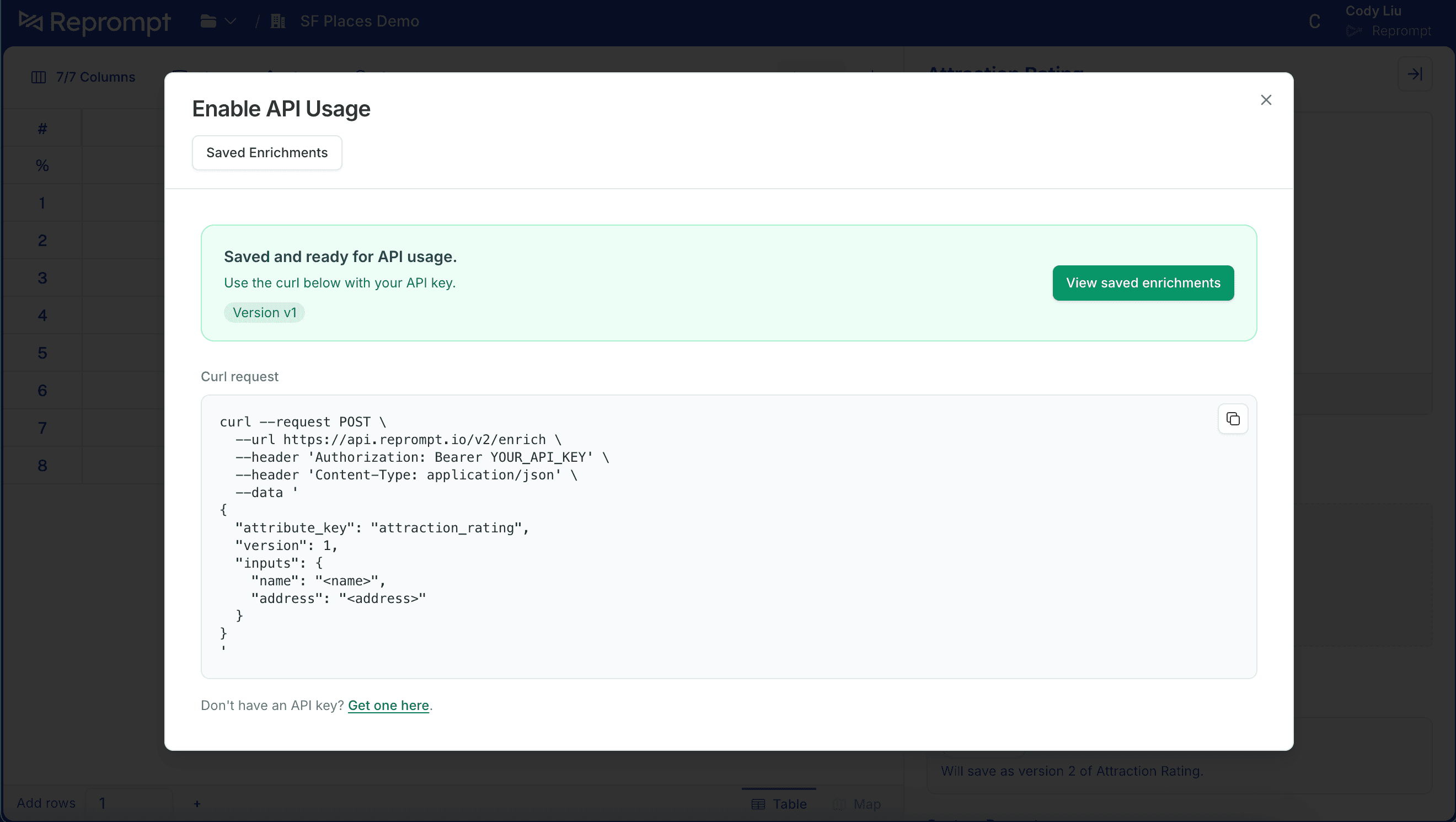
Once enabled, you will see a confirmation that it is ready to use.
4) Call the agent from the API
Use the attribute_key shown in the UI with the /enrich endpoint.
curl --request POST \
  --url https://api.reprompt.io/v2/enrich \
  --header 'Authorization: Bearer {YOUR_API_KEY}' \
  --header 'Content-Type: application/json' \
  --data '{
    "attribute_key": "attraction_rating",
    "inputs": {
      "name": "Golden Gate Bridge",
      "full_address": "Golden Gate Bridge, San Francisco, CA"
    }
  }'
curl --request POST \
--url 'https://api.reprompt.io/v2/enrich?version=1' \
--header 'Authorization: Bearer {YOUR_API_KEY}' \
--header 'Content-Type: application/json' \
--data '{
"attribute_key": "attraction_rating",
"inputs": {
"name": "Golden Gate Bridge",
"full_address": "Golden Gate Bridge, San Francisco, CA"
}
}'5) Edit the agent and create a new version
To make changes, return to the agent editor, update the prompt, and click Use in API again.
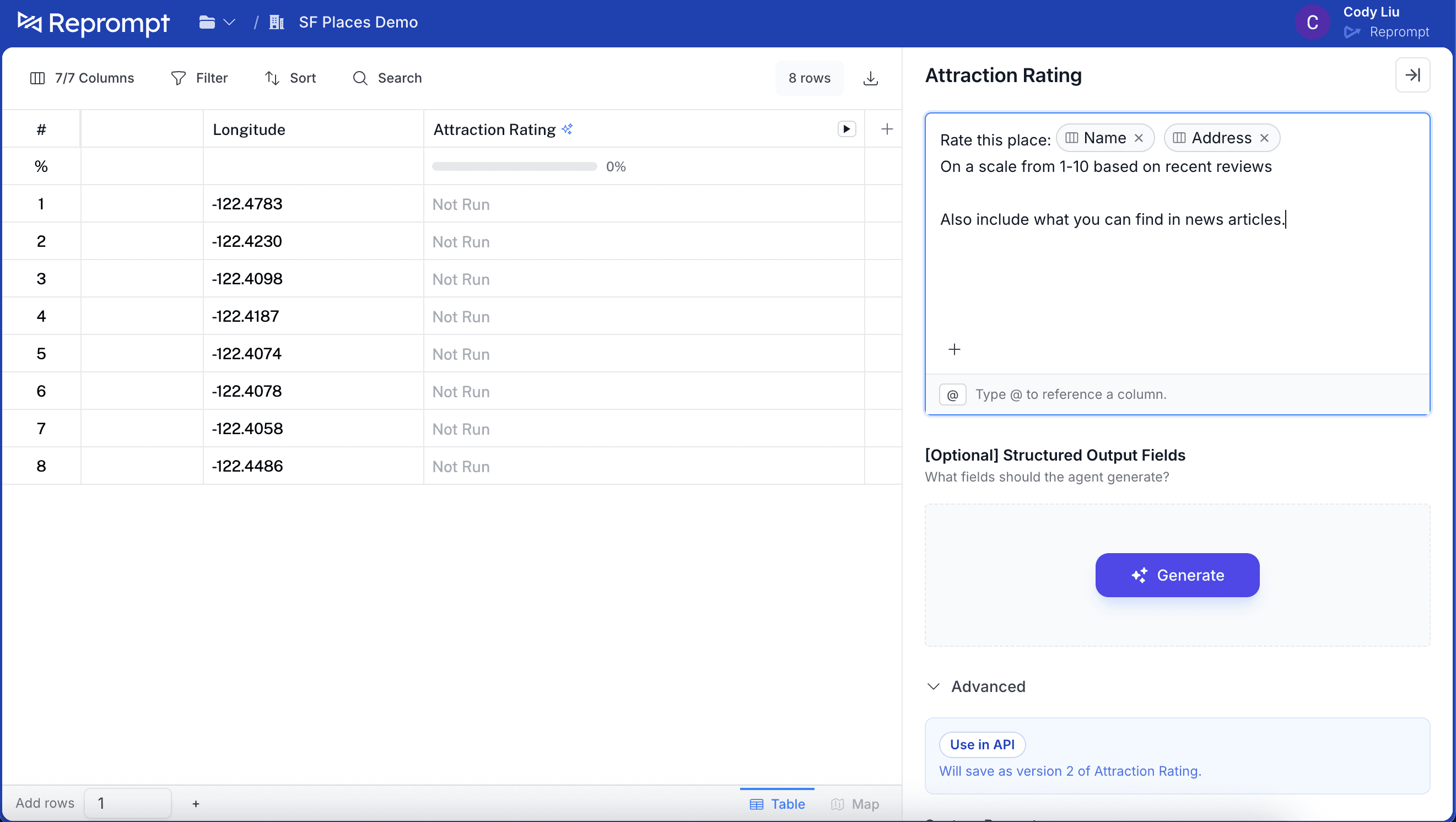
Click Save. The confirmation will show which version will be saved.
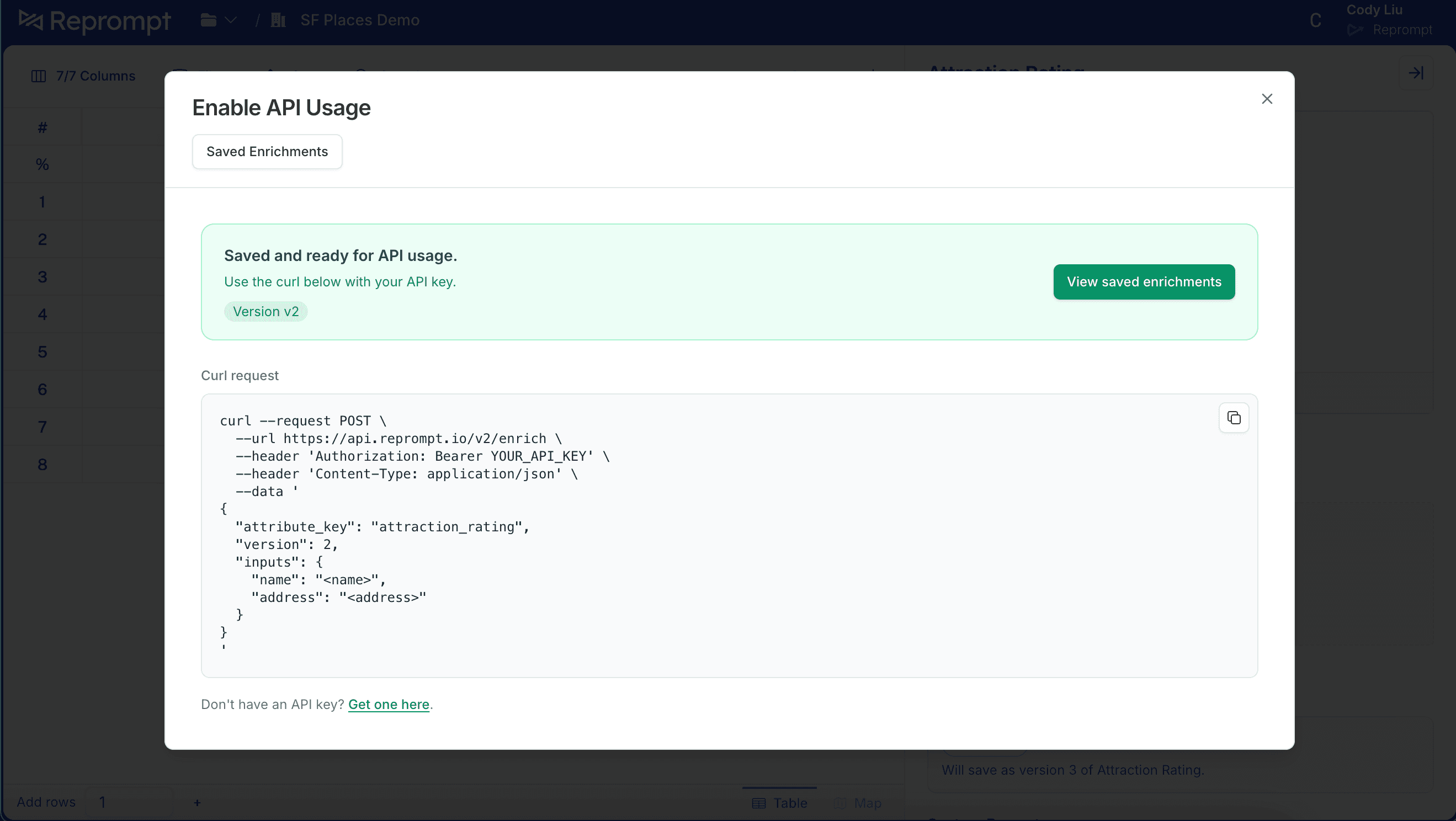
After saving, the agent is ready to use. Any API callers without a version parameter will now use the default version.
6) Manage default versions
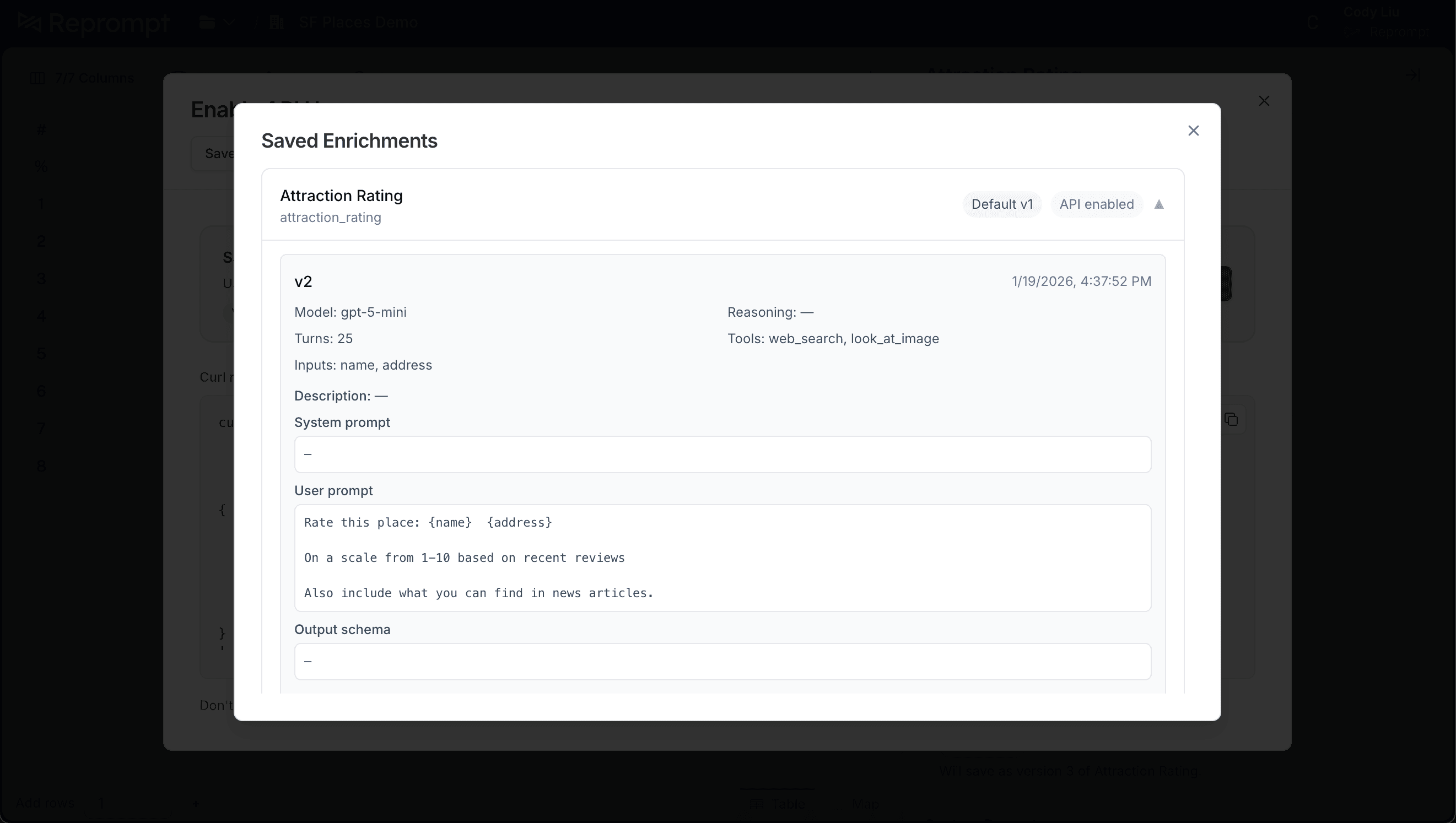
Click Saved enrichments to view all versions. The default version is labeled and shows API enabled.
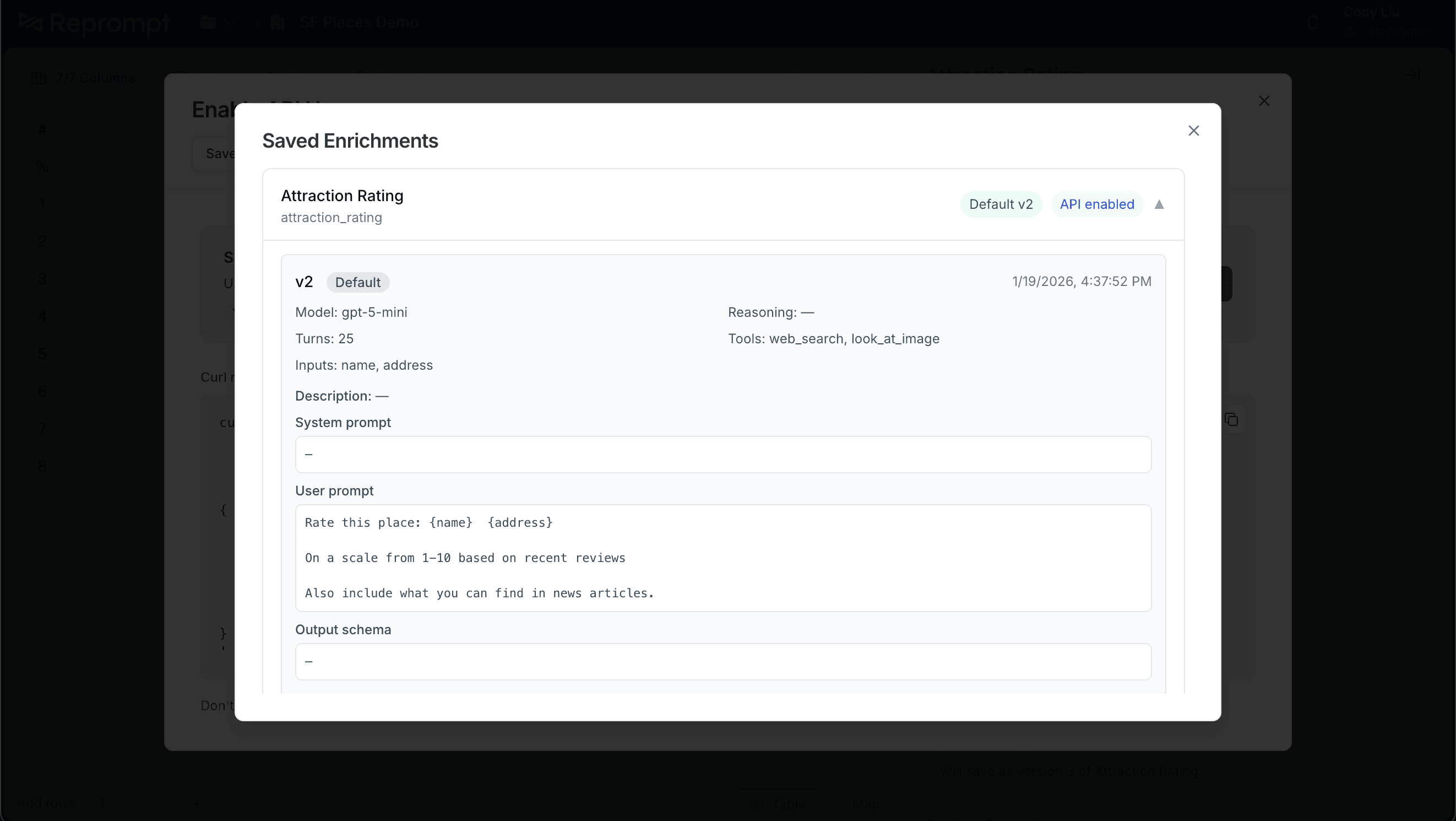
To change the default, find the version you want and click Set as default.
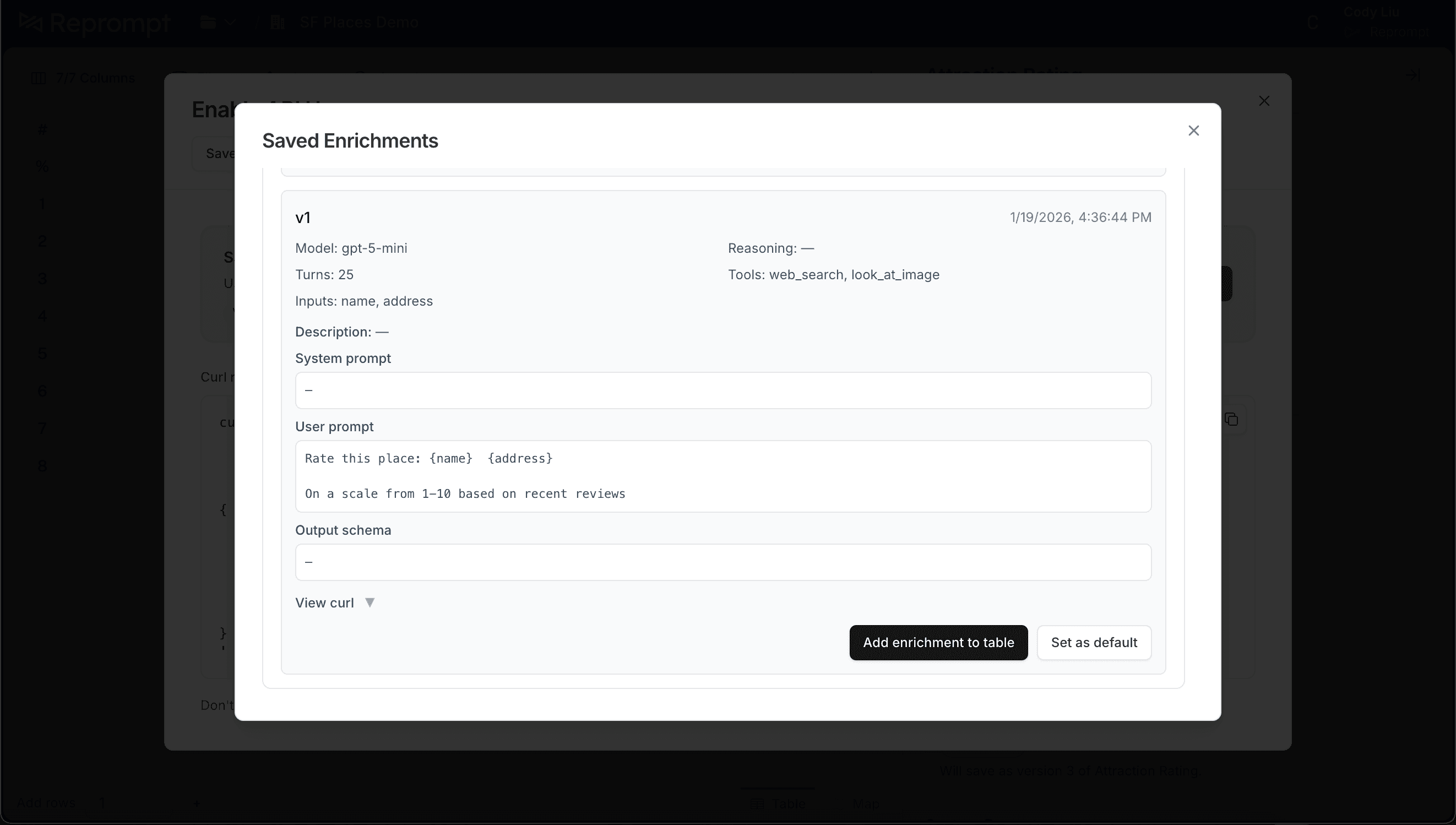
The header updates to show the new default. Calls without a version parameter will now use this version.